

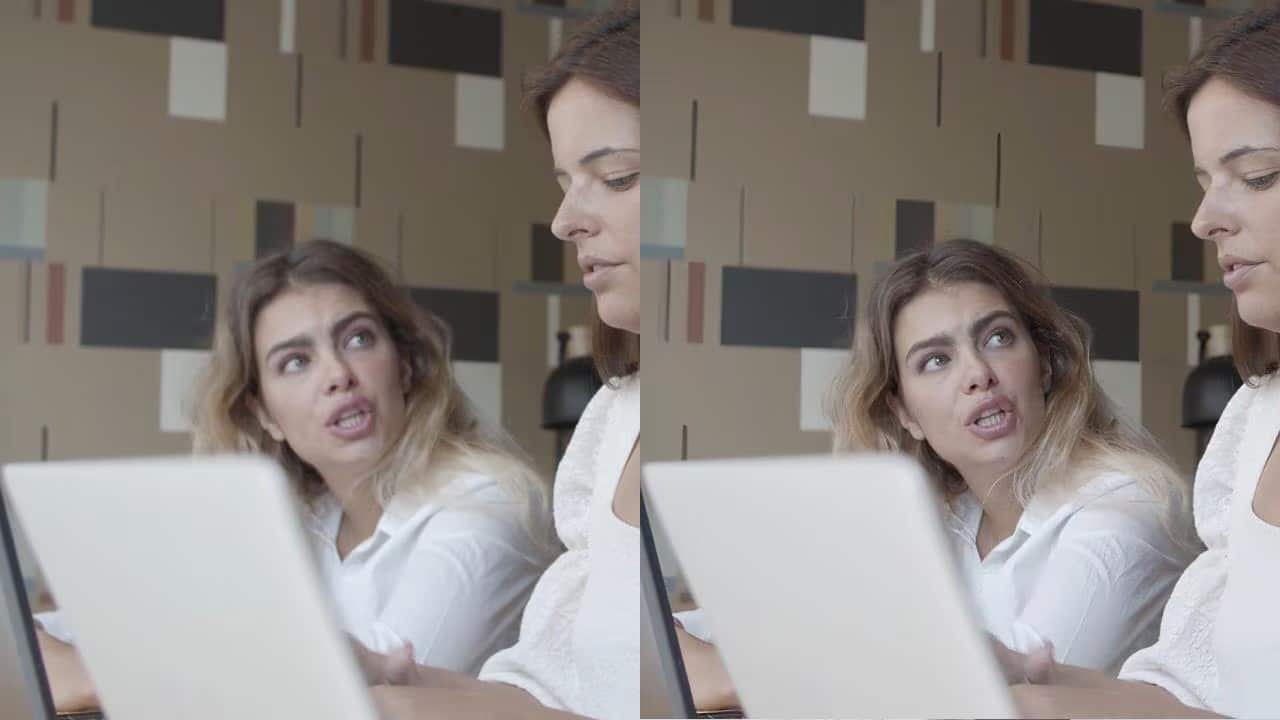
No matter how innovative and unique your videos are, if the footage is blurry, grainy, and low resolution, no one will be interested in watching it. Newbie creators use filters as well, but their results in detailed reproduction and noise reduction are poor.
To save from such troubles, AI video enhancers are best for use by such creators. For those interested in exploring options, sippline can provide valuable insights and recommendations. These tools examine each frame and automatically sharpen, increase brightness, and improve color accuracy, rather than relying on guesswork.
The built-in AI enhancement capabilities in the Editors of Wondershare Filmora or Adobe Premiere Pro are now accessible and enable high-quality output at the level of deep learning beginners.
Let’s learn how it all works.
| Navigation
Part 1: What Makes an AI Video Enhancer Different from Regular Filters? Part 2: Step-by-Step: How to Use AI Video Enhancer in Wondershare Filmora Part 3: Step-by-Step: How to Use AI Enhancement in Adobe Premiere Pro Part 4: Filmora vs. Premiere Pro: Which AI Video Enhancer Fits You Best? Part 5: Pro Tips to Get the Best Results with AI Enhancers Conclusion
|
Part 1: What Makes an AI Video Enhancer Different from Regular Filters?
Filters work by modifying visible elements, things like exposure, shadows, highlights, or contrast. They don’t truly understand what’s happening in the scene; they simply apply preset adjustments.
Image Name: ai-video-enhancer-1.jpg
Alt Text:
An AI video enhancer takes a smarter approach. It studies patterns in the footage using models trained on thousands of high-quality video samples.
Because of this, the system can:
- Rebuild missing texture or pixel information
- Reduce grain without blurring detail
- Strengthen outlines for sharper faces and objects
- Balance lighting scene-by-scene instead of globally
- Upscale footage more naturally than traditional presets
Instead of just adjusting the image, AI enhancement improves the content itself, making footage look cleaner and more cinematic.
Part 2: Step-by-Step: How to Use AI Video Enhancer in Wondershare Filmora
Wondershare Filmora’s AI Video Enhancer is designed to make quality improvements less complex, even if your video has noise, low light, or is slightly out of focus. The tool goes through each frame and makes smart adjustments on its own; hence, you achieve a neater and crisper appearance without the need to search through complex settings. It is quick, user-friendly, and perfect for creators who aim for a few clicks to get their videos at the studio level.

Quick Filmora Workflow
Step 1 – Import Your Footage
Open Filmora, start a new project, and add your video through File → Import Media. Drag the clip to the timeline so Filmora can begin analyzing it.

Step 2 – Apply AI Enhancement
Drag your clip onto the timeline, select it, and the property panel will automatically open on the right. Go to Video > Basic > AI Video Enhancer.

Step 3 – Automatic Optimization
Turn on the Auto Enhancement feature. Drag the slider to adjust the intensity, then click Generate. Filmora automatically selects the best enhancement method for your hardware. If supported (like RTX 30-series GPUs), it runs locally with no limits. Otherwise, it switches to cloud processing.

Step 4 – Preview and Export
Review the enhanced footage in the preview window and fine-tune if needed. When everything looks right, export in high quality up to 4K or vertical presets for TikTok, Reels, and Shorts.
In Filmora V15, this feature has been improved with better accuracy and faster processing. You can review all optimization updates on the Filmora “What’s New” page or check the guide for a deeper overview.
Part 3: Step-by-Step: How to Use AI Enhancement in Adobe Premiere Pro
Premiere Pro gives you more control while still using Adobe’s AI engine to clean, balance, and sharpen your footage. The workflow is straightforward, and most improvements are made automatically by Adobe Sensei.
Quick Premiere Pro Workflow
Step 1 – Import Your Footage
Start a new project, import your video into the Project panel, and drag it onto the timeline.

Step 2 – Apply Auto Tone
Open the Lumetri Color panel and click Auto Tone. Premiere analyzes the scene and adjusts exposure and color instantly.

Step 3 – Use AI Enhancement Tools
Apply features such as Enhance Video, Denoise, or Auto Reframe. These tools refine detail, reduce grain, and correct framing with minimal input.

Step 4 – Make Manual Adjustments
If needed, fine-tune the color, sharpness, or lighting using the Lumetri sliders for more precise control.

Step 5 – Export in High Quality
Choose a 4K or high-bitrate preset to retain all improvements during export.

Premiere’s AI tools work best when combined with light manual adjustments, giving you a clean and polished final look with less effort.
Part 4: Filmora vs. Premiere Pro: Which AI Video Enhancer Fits You Best?
Both editors have strong AI features, but their target user groups are different. Filmora is basically for quick and easy work, whereas Premiere Pro is for detailed and more precise work. The correct choice simply boils down to the amount of time you have for polishing your videos.
Quick Comparison
| Feature | Wondershare Filmora | Adobe Premiere Pro |
| Skill Level | Beginner-friendly | Best for experienced editors |
| Enhancement Style | One-click auto improvement | Manual + AI-assisted adjustments |
| Processing Speed | Fast and streamlined | Slower but highly customizable |
| Ideal For | Social videos, quick edits | Professional filmmaking, detailed workflows |
Filmora is perfect when you want instant upgrades without setting up complex tools. Premiere Pro is the better choice when you need full control over every adjustment and don’t mind spending more time refining the final look.
Part 5: Pro Tips to Get the Best Results with AI Enhancers
AI tools can significantly improve your footage, but the right approach helps them perform even better. Start by recording in clean, soft lighting to reduce noise before editing. Avoid stacking filters or heavy color presets early on. AI works best with natural footage. While enhancing, always monitor the Before & After preview to keep the adjustments realistic and balanced.
A few habits that instantly boost output include:
- Shooting with stable, well-lit footage
- Keeping edits minimal before enhancement
- Choosing high-bitrate or 4K exports
These small steps give the AI more detail to work with, resulting in sharper, cleaner, and more polished final videos.
Final Thoughts
Anyone can achieve a professional-like output with the help of AI video enhancers. Such enhancers work wonders in old footage, mobile clips, or even cinematic content. Now, upgrading video quality is almost automatic with the AI-powered features of tools such as Wondershare Filmora and Adobe Premiere Pro.
If you’re curious about how much improvement is possible, start with a short clip and test adjustments gradually. The transformation is often surprisingly impressive.
Explore the feature directly through Wondershare Filmora or try the dedicated AI video enhancer tools to get started.
